
Home » Posts filed under Windows 8
Full List Of Useful Windows 8 Shortcuts You Need To Know
 Posted in
 Sunday, December 9, 2012|
 Raj Kumar.G
The latest version of the Windows OS was successfully launched last month by Microsoft, the all new Windows 8. Knowing the Windows 8 shortcuts is very important in order to make the most out of this beautiful operating system. Windows 8 shortcuts are simpler as compared to that of Windows 7. Windows 8 is certainly an awesome step by Microsoft, with the introduction on live tiles and apps it looks much user-friendly and clean. Today I'll be sharing the full list of Windows 8 shortcuts with you people. I hope you'll enjoy knowing them.

List Of Windows 8 Shortcuts

List Of Windows 8 Shortcuts
- Windows Key + I (Setting Pane) : This allows you to change the setting of any app, rate an app or adjust the permissions of the app. It also allows you to access control panel, personalization (from desktop), Wi-fi networks, power, brightness, volume and others.
- Windows Key + C (Charms Bar) : This allows you to check the setting pane, search, share, see the other devices connected to the PC and go to the start (home screen).
- Windows Key + H (Sharing Pane) : This allows you to share any content from an app with your friends via email, social networks and other ways.
- Windows Key + X : It displays a power user menu which consists of many common tools like Run, Control Panel, Task Manager, File Explorer, Command Prompt and many more.
- Windows Key + Q : Using this you can search for any app or within the app in the Windows 8.
- Windows Key + D : This shortcut lets you switch between desktop and the running desktop apps. Hit once to go the desktop and the other time you'll be on the desktop app you were working on.
- Windows Key + Tab : This can be used to switch between all the running apps and the desktop on Windows 8, while Alt + Tab can be used to switch between all the running apps including each desktop app.
- Windows Key + PrtScn : This shortcut allows you to take a snap shot or screenshot of your screen at any time. It saves the image in PNG format in your 'Pictures' folder. It's really a nice thing for bloggers after Snipping tool.
- Windows Key + + : Hit the Windows key and + repeatedly to zoom in.
- Windows Key + - : Hit the WIndows key and - repeatedly to zoom out. (You can use Win + PrtScn in combination with 9th and 10th shortcut to take better screenshots.)
- Windows Key + L : This shortcut allows you to lock your computer or tablet. It's really helpful when you are in a hurry and want to lock your PC urgently.
- Windows Key + F : Using this you can quickly search for any file on your Windows 8 computer.
- Windows Key + W : This will allow you to access the settings and control panels easily, no matter what are you doing on your PC.
- Windows Key + R : This shortcut will bring up that old faithful Windows Run window, I hope you remember that!
- Windows Key + E : You can use this to quickly launch the Windows Explorer in Windows 8.
- Windows Key + Enter : This launched the Narrator which verbally reads the window tiles, buttons and text which helps you to navigate easily without seeing the screen.
- Windows Key + P : It brings up options for duplicating or projecting the content on a connected device/display.
- Windows Key + Arrows : Win + Up arrow maximises any desktop app while Win + Down Arrow minimizes it. Win + Left Arrow makes the windows small and moves it to the left side of your screen while Win + Right Arrow does the same thing and moves it to the right side.
- Windows key + Any Digit : Launch any desktop application pinned to your task-bar using this shortcut. Hold down the Windows Key and press any digit from 0 to 9, each digit represents an app.
- Windows Key + M : With this you can quickly minimize all the desktop apps.
- Windows key + U : You can start the Ease Of Access centre which provides options to start programs, display settings that provide additional accessibility like Narrator, Magnifier etc.
- Windows Key + B : Use this shortcut to quickly activate the currently running desktop application.
- Windows Key + . : Use this to quickly snap a running application to the side of the screen, hit it again to send the app to the other side of the screen and then recover.
- Windows + , : Use this shortcut to display the desktop for as long as you want, hold the windows key and press comma once.
- Windows Key + T : You can cycle through your desktop apps task bar thumbnail groups.
- Windows Key + Z : It allows you to bring up the apps bar through which you can access the additional features in most of the apps.
All these Windows 8 shortcuts will help you to navigate through more easily and have a better experience using Windows 8. As far as the interface of Windows 8 is concerned it's far more different from that of the other Windows OS, as they have introduced the live tiles and apps. It looks more clean and user-friendly now. I hope you enjoyed reading this article and learned new shortcuts which you weren't aware of in the Windows 8 OS. Thanks for reading and do share your opinions about the Windows 8 here via comments, keep supporting!
Windows 8 Security: What's New?

Microsoft has been adding and improving advanced security features and capabilities in its Windows operating system and other applications over the past few years. Each iteration of Windows has featured improved security—necessary to withstand the constant barrage of attacks—and Windows 8 coming is no exception.
In Windows 8, Microsoft expanded its support for embedded hardware security, bundling a full-blown security suite into the operating system, introducing secure boot and signed applications, and enableing alternate authentication schemes, to name a few. Some of the latest innovations are aimed specifically at enterprise users and meet business needs, but there are plenty of improvements that end-users will notice right off the bat, too.
 "After reviewing the layers of technologies used by Microsoft to protect Windows 8, it is our opinion that it is the most secure version of Microsoft Windows to date," Aryeh Goretsky, a distinguished researcher at ESET, wrote in a whitepaper examining security technologies in Windows 8 released earlier this month. Microsoft is offering three main versions of the new operating system. Windows 8 is the "home" edition, Windows 8 Pro includes features for enterprises, such as support for Hyper-V, BitLocker, a virtual private network client and group policy support, and Windows RT for ARM-powered devices.
Secure Boot
Microsoft designed Secure Boot to protect the computer from low-level exploits and rootkits and bootloaders. A security process shared between the operating system and Unified Extensible Firmware Interface (UEFI, replacing the BIOS), Secure Boot requires all the applications that are running during the booting process to be pre-signed with valid digital certificates. This way, the system knows all the files being loaded before Windows 8 loads and gets to the login screen have not been tampered with.
Microsoft designed Secure Boot to protect the computer from low-level exploits and rootkits and bootloaders. A security process shared between the operating system and Unified Extensible Firmware Interface (UEFI, replacing the BIOS), Secure Boot requires all the applications that are running during the booting process to be pre-signed with valid digital certificates. This way, the system knows all the files being loaded before Windows 8 loads and gets to the login screen have not been tampered with.
If a bootloader has infected your computer and it tries to load during the boot-up sequence, Secure Boot will be able to undo all the changes and thwart the attack. Having Secure Boot means it is that much harder for attackers to try to compromise the start up sequence.
While PC makers have to have Secure Boot enabled in the UEFI firmware by default, if they want to be able to slap the Windows logo outside the box, the feature can be disabled within the UEFI interface. Anyone who wants to install a non-Windows operating system on Windows 8-certified hardware would first have to manually disable SecureBoot.
Windows Defender

As PCMag's lead analyst for security Neil Rubenking noted a few weeks ago, Microsoft decided to release Windows 8 with built-in antivirus. This is a much more robust application than Microsoft Security Essentials, the free anti-malware software that users could download and install manually in previous versions.
Windows Defender (Microsoft repurposed the name for the anti-malware product) is enabled by default, right out of the box, which means users have some form of security protection as soon as they turn on the machine. While it can't be uninstalled, it can be disabled if the user wants to install a different security product from another vendor (AV-Test has certified several as being Windows-8-ready). In fact, Windows Defender must be disabled if you want to install a third-party security suite.
Loading the AV First
Regardless of whether you are using Windows Defender or a different anti-malware product, Windows 8 has tweaked its load process so that security software runs first. Early Launch Anti-Malware (ELAM) insures that the first software driver loaded into Windows 8 is a driver from the user's anti-malware software.
Regardless of whether you are using Windows Defender or a different anti-malware product, Windows 8 has tweaked its load process so that security software runs first. Early Launch Anti-Malware (ELAM) insures that the first software driver loaded into Windows 8 is a driver from the user's anti-malware software.
In previous versions, if the malware executed and was loaded into system memory before the operating system and the antivirus, it was difficult to detect and remove. SecureBoot prevents rootkits from interfering with the OS, and ELAM ensures that pre-approved anti-malware software drivers are loaded before any other application.
Whether or not it is effective is unknown, but Goretsky noted in the whitepaper that the concept was "fundamentally sound."
SmartScreen

Originally an Internet Explorer security feature, Microsoft added SmartScreen to Windows 8. When a user downloads a program or a file from the Internet, the SmartScreen filter checks to see if other people have downloaded the same file as well. If so, there is a rating for the file based on its popularity and whether it was considered malicious. Users trying to download something with a low rating while Smart Screen is enabled will see a warning message. This can be good for detecting fake antivirus and other rogueware programs.
Since SmartScreen is now part of Windows 8, the filter will kick in regardless of what browser the user is running, not just Internet Explorer
Adobe is pronounced as the lack of Flash 8 in Windows
.

Just like the Android and iOS to add an application to the desktop you must use the application Adobre AIR. Winokur also said the company is working with Microsoft, Apple and Google in the further development of HTML 5, which should result in even better products delivered both as web pages or by application stores.
The text ends optimistically by the project manager, which states that the development team is excited by the opportunities for innovation offered by new developments of the Internet and various platforms, including Windows interface 8 and the new Metro.
How to install Windows in dual boot with Windows 7
If you could not stand to hold the curiosity and downloaded the Windows Developer Preview 8for testing, but do not want to lose your data and programs from Windows 7 , will learn from this tutorial RytBrothers.com how to put two operating systems running in dual boot your machine.
After downloading this trial version of Windows 8 , you need to burn the ISO to a DVD-R, on your own computer. To accomplish this, use your favorite program, or even the Windows 7.Then, before starting the installation, you must create a partition to install the new system.
 |
Creating a new partition
Step 1. Click the Start button in Windows 7, and in the search field, search for Computer Management, and then click Disk Management;
Step 2. Probably you will find only one disk drive. Click on it with the right mouse button and select "volume down";
Step 3. Choose the partition you want to create, in the field provided and click "Shrink". Of course, this size can not be greater than the available free space on hard drive;
Step 4. Now click on the rectangle that represents the partition created with the right mouse button and choose "New Simple Volume." This will format the partition properly for the delivery of Windows 8. In the window that opens, go into options to the end;
You can make a name for each partition, so the result will be similar to the image below:
 |
Installing Windows 8
Step 5. Place the DVD into the tray and restart the computer;
Step 6. Choose to start your computer from the CD / DVD. He will enter the setup screen of Windows 8;
Step 7. Once this initial screen, choose your keyboard layout. Generally, the correct choice is ABNT2 for the Portuguese language (Brazil), is clear and click "Next." Unfortunately this still does not address our language. Following section on the screen, click "Install now";
Step 8. The installation will ask you to accept the Terms of Commitment. On the next screen, select "Custom (advanced)" to configure the installation;
 |
 |
| Windows Setup 8 |
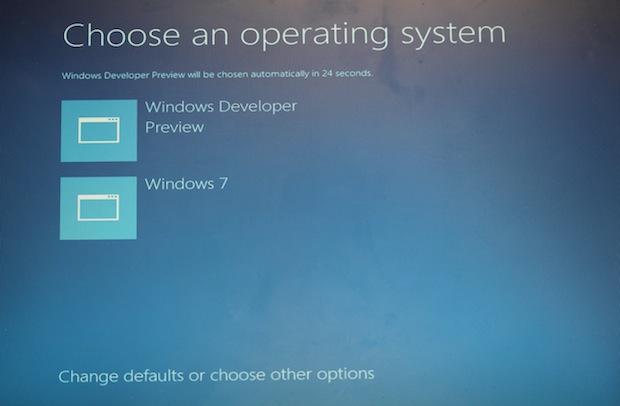

Download And Try Out Windows 8 Developer Preview
As we posted about windows 8 OS release, Microsoft released windows 8 developer preview tool for download. You can download it from Microsoft msdn site.
Download summary:
Windows released developer preview for 64-bit (x64) and 32-bit(x86) and also Windows Developer Preview with developer tools English, 64-bit (x64).
Download from official site
Key Notes to remember:
Upgrade from windows 7 installation is not supported for pre-release code; only clean installs aresupported.
· You can’t uninstall the Windows Developer Preview. To reinstall your previous operating system , you must have restore or installation media.
· The Windows Developer Preview is a pre-beta version of Windows 8 for developers. These downloads include prerelease software that may change without notice. The software is provided as is, and you bear the risk of using it. It may not be stable, operate correctly or work the way the final version of the software will. It should not be used in a production environment. The features and functionality in the prerelease software may not appear in the final version. Some product features and functionality may require advanced or additional hardware, or installation of other software.


Sponsors

Popular Posts
-
 Have you updated your copy of Windows and received the "This copy of Windows is not genuine" notification. Have you ever wondered ...
 -
 Sometimes your windows 7 may behave weird because of some corrupted windows file. In such case you will want to scan for corrupted files and...
 -
 1. LG W2486L 1920 x 1080 pixel resolution, the LG W2486L monitor achieves full High Definition image reproduction 16:9 aspect ratio. Th...
Recent Stories
Connect with Facebook
Sponsors
Search
Archives
Categories
Recent Comments
Tag Cloud
Tech News
Featured
How To
Facts
facebook
Blogging
Google
Windows
Internet
OMG
adsense
About
Mobile
Windows 7
Windows 8
firefox
Browser
Social Networking
Interview
Mahindra Satyam
Medical
News
Thesis
Wordpress
airtel
blogger
chrome
Adobe
Coupon Code
Domain
Facial
Flash Media
Free Facebook
Mp3
Offer
Promo Code
Questions with Answer
Reliance
Salary
Skype
Top
USB
Wallpaper
Web
adwords
bookmark
convert
fan page
free
online
stylish
yahoo
404
Accurate
Albums
Allergy
Amazon
BIOS
Beauty
Beer
Benifits
Birds
Bootable
Broadband
Business
Communication
Cut
Dandruff
Diamond
Doctors
Documents
Dolphins
Download
Explorer
Facial Recognation Technology
Free Ware
FriendSheet
Fungus
GSM
Genuine
Grammer
Grandma
Hacked
Improve
Installer
Ipad
Ipad 3
Job Alerts
Junglee
Kindle Fire
Laptop
Marathon
Mark
Market
Mediastinal Seminoma
Monitors
Mouse
Mozilla
Negotiate
Nokia
Olympic Gold Medal
Power Cut
Profile Picture
RIP
Recognition
Repair
Rich
Rio
Security
Signal
SkypeIn
Smartphone
Space
Tallest Man
Tamilnadu
Temple
Theme
Tips
Treatment
Types Of Blogs
USSD
Vehicle
Videocon
WIFI
WMA
What
Women
Xp
Youngest Mother
Youtube
Zuckerberg
add more
android
anna Hazare
apple
application
audio
backup
balance
banned
birthday
blank
buying
chief minister
chromebook
cleanup
computer
customisation
delete
details
develop
disk
edit
error
extension
fax
footer
galaxy
games
giveaway
google plus
index
information
ios
join
kerala
launches
light box
mac
messange
microsoft
notifications
number
office
orbits
own
pc
pdf
photos
pigeon
pinterest
planetary
read more
regedit
registration
restore
ring2skype
rss
ryt
samsung
scan
skin
software
sound
steve jobs
subscribers
tab
teasers
timeline
tool
trick
twitter
widgetized